Download Alight Motion Preset in XML File Format
Alight Motion presets are a great way to make professional videos, animations, and motion graphics easily. Whether you’re creating Instagram Reels, TikTok videos, YouTube Shorts, or cinematic edits, presets can save you time and help you keep a consistent look. With the right alight motion preset, you can add effects, colors, transitions, text animations, and movement to your project. Instead of tweaking every setting by hand, you can start with a ready-made design and customize it to fit your content.
Many creators look for Alight Motion Mod APK presets to boost their editing skills, follow trends, and try out different visual effects. Some presets are for beginners, while others feature advanced keyframes, masking, motion blur, and layered animations. In this guide, you will learn what Alight Motion presets are, the types available, how to download and import them, how to create your own, and how to fix common problems.
What Is an Alight Motion Preset?
An Alight Motion preset is a useful tool for video editors. It saves a setup of effects and settings for easy reuse. Presets help you quickly add a certain look or style to your videos. When you create or share a preset, it can include animation settings, color changes, transitions, and text effects. This means you won’t have to start from the beginning each time you want the same effect.
If you regularly make music videos with zoom effects and bright colors, a preset lets you start your project with those features ready. Presets can be simple or complex. A basic preset might change colors or animate text, while a more advanced one can use multiple layers, keyframes, and masks. Overall, presets save time and improve your editing, making it easier to realize your creative ideas.
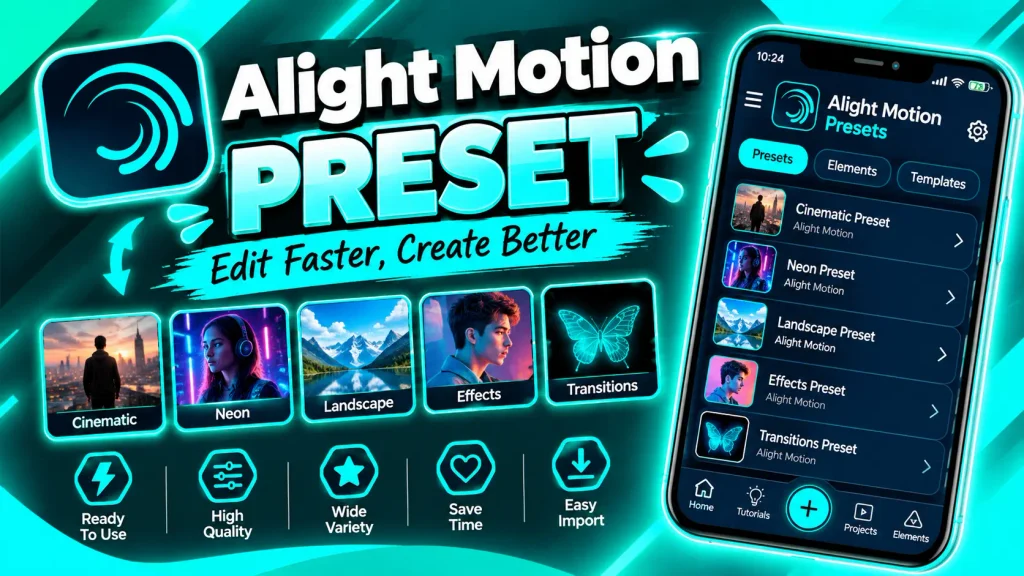
Download Alight Motion Presets
Shake Presets
Shake presets add quick movement or camera-like shaking around a subject. They’re commonly used in music edits, gaming clips, and lively short videos. A well-timed shake can highlight a beat or key moment. However, too much shaking can make a video hard to watch, so adjust the intensity to fit the footage.
Velocity Presets
Velocity editing changes how fast a clip appears, using slow motion and faster speeds to add rhythm. It may include timing adjustments, zoom effects, or transitions. The outcome relies on the source footage and the speed-control tools used. High-quality video offers more options for speed changes.
Smooth Transition Presets
Transition presets help transition between clips with effects like zooms, rotations, slides, and blurs. They are great for travel videos, fashion edits, montages, and social media posts. Make sure the transitions match the speed and topic of your video.
Text Animation Presets
Text presets add movement to titles, captions, names, or other screen text. They can include effects like fading, sliding, scaling, or revealing letters one at a time. These presets make titles more interesting and save time compared to animating each part by hand.
Color Grading Presets
Color presets change the look of videos. They can affect contrast, saturation, brightness, and other color settings. A preset that works well on one clip might not suit another. Always check skin tones, shadows, and highlights after using it.
3D and Zoom Presets
These presets add depth and movement by using scaling, rotation, perspective effects, and layered animations. They are commonly used in cinematic edits, character videos, and promotional content. The effects you can use depend on the preset’s design and your app version’s features.
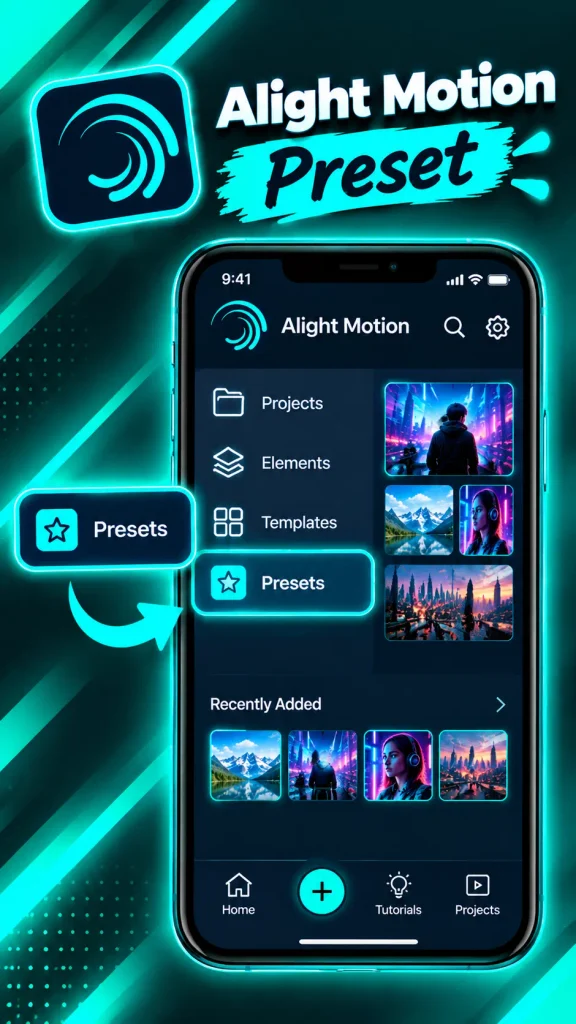
How to Import an Alight Motion Preset
The process for importing depends on how the preset was shared. There isn’t one method that works for all presets.
Importing Through a Project Link:
If a creator gives you a project link for Alight Motion, open it the way they suggest. Follow the prompts from your device and app. Once the project is open, make sure all layers, effects, and animations look correct.
Importing Through a QR Code:
Some creators use QR codes to share projects. If the code is for Alight Motion and works with your app, follow the creator’s instructions to scan or open it. Only use QR codes from trusted sources, as they can lead to unrelated websites. Check where the code goes before proceeding.
Using a Shared Project:
If you get a project through a supported method, open it and check its contents before making changes. You might need to replace sample footage, update text, or adjust the layout to fit your video.
How to Use an Alight Motion Preset On Mobile
Step 1: Open the Project
Open the preset project and look at its layers, timing, and visual effects. Knowing the structure helps you make changes without messing up the animation.
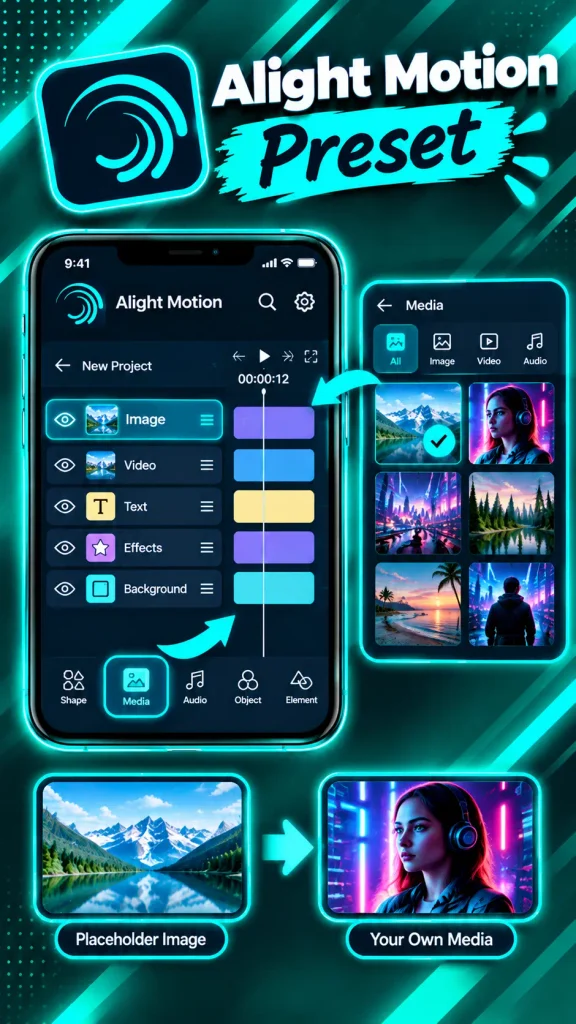
Step 2: Replace the Sample Media
If the project has placeholder images or videos, replace them with your own using the app’s layer or media controls. Make sure your footage fits well and does not cover important text or graphics.
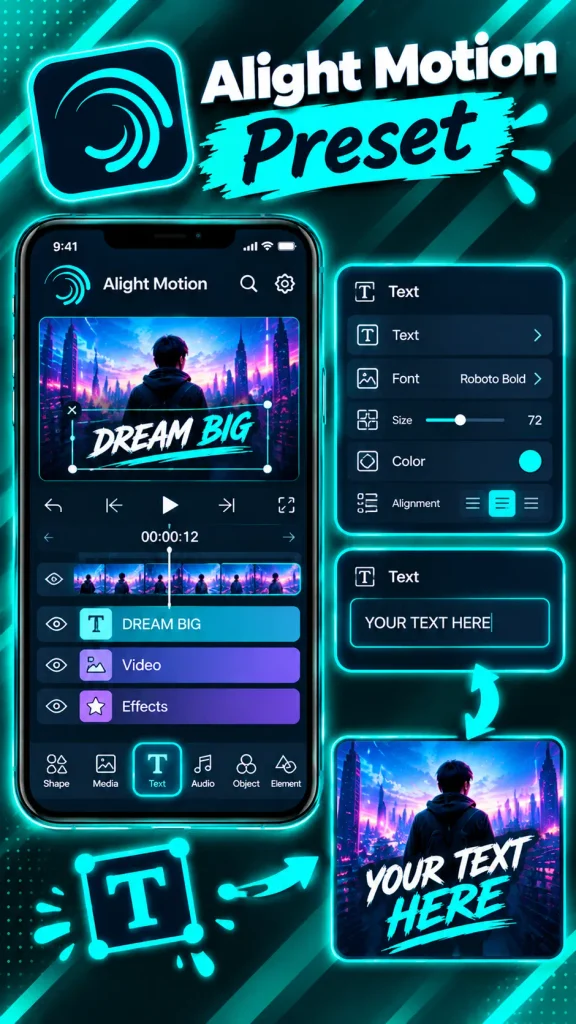
Step 3: Edit the Text
Update titles, names, or captions as needed. Use a clear font size and make sure the text is easy to read against the background.
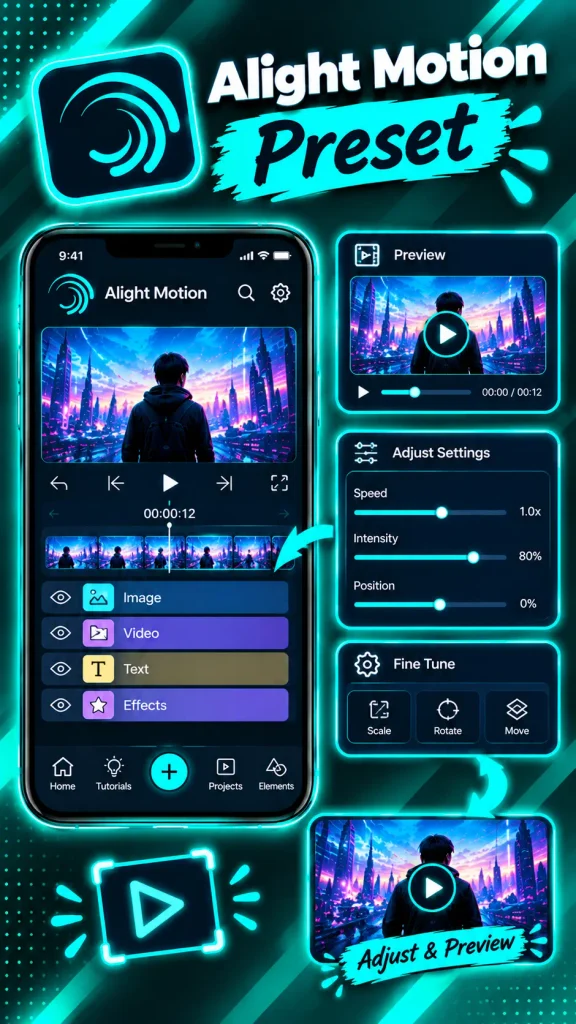
Step 4: Adjust Timing and Effects
Preview the animation and change its timing, intensity, or position to match your footage. A preset meant for a quick music edit may require slower movement for a tutorial or promotional video.
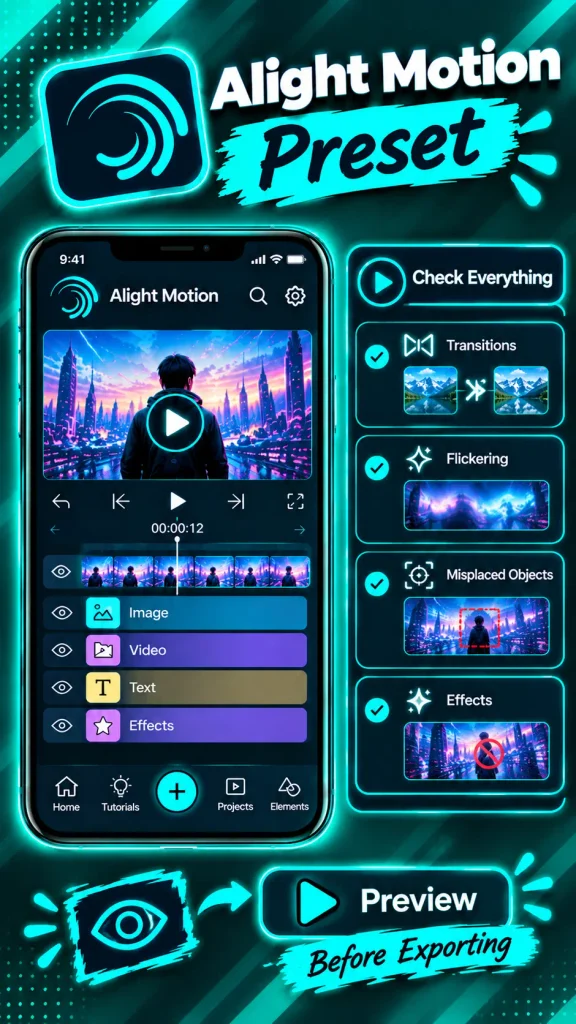
Step 5: Preview the Complete Video
Watch the whole sequence before exporting. Check for awkward transitions, flickering, misplaced objects, or effects that take attention away from the main subject.
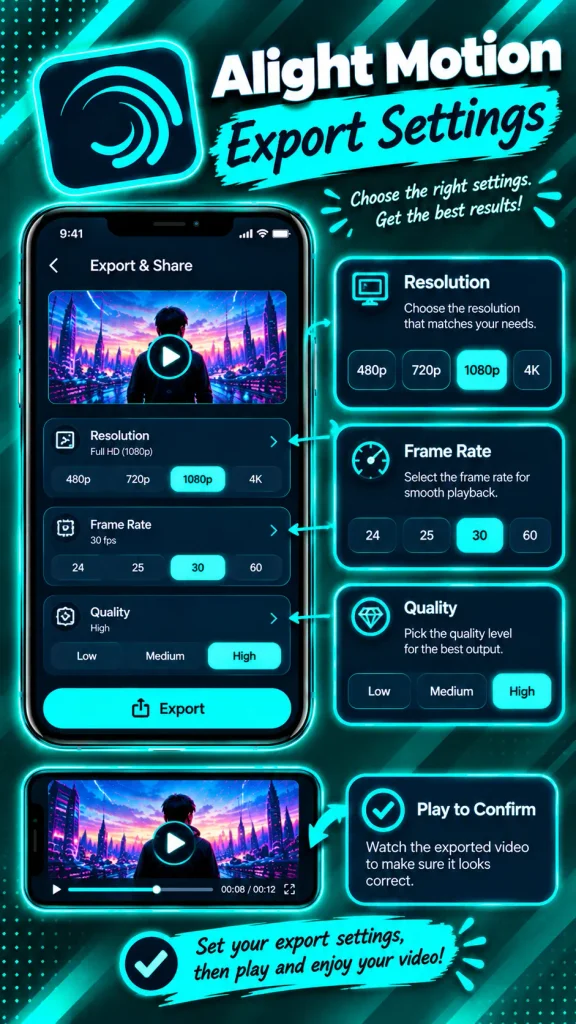
Step 6: Export Your Project
Choose export settings based on where you’re sending the video. Check the resolution, frame rate, and quality options. After exporting, play the video to make sure it looks right.
Why Are Alight Motion Presets Popular?
Presets are popular because they make editing easier and help creators work faster.
Save Editing Time:
Creating an animation from scratch takes a lot of time. A preset gives you a ready-made effect or project layout that you can change, instead of starting over. This is especially helpful for making similar videos quickly.
Create Professional-Looking Videos:
A well-made preset combines effects, transitions, colors, and movements for a polished look. You can adjust these settings to fit your footage and style. The final quality still relies on your clips, timing, and personal tweaks.
Improve Editing Skills:
Studying a preset helps you see how keyframes, layers, and effects work together. By trying out different settings, you can learn techniques to use in your own projects.
Maintain a Consistent Style:
Creators who post regularly can use the same transitions, text animations, and color schemes. This keeps a consistent look across their videos.
Explore Creative Ideas:
Presets offer beginners an easy way to try out styles they may not know how to create. You can experiment with different effects and gradually develop your own editing style.
Diverse Options:
Alight Motion offers a large collection of presets with millions of options. You can choose from modern transitions, glitch effects, retro styles, and more. This variety lets you explore different looks and find the best match for your content.
Alight Motion Preset Pros and Cons
Pros
Cons
Alight Motion Preset Problems and Solutions
Alight Motion presets are powerful and user-friendly, but you might face some common issues. Here are tips to help you solve them:
Preset Link Is Not Working:
The link might be expired, removed, or copied wrong. Go back to the original post and see if there’s an updated link.
QR Code Does Not Open the Project:
Make sure the QR code is for Alight Motion and that your app version supports it. If the creator has other instructions, try those.
Effects Are Missing:
The project might use effects not available in your app version or need extra adjustments. Check the creator’s notes and update the project if you can.
The Preset Looks Different on Your Device:
Screen size, source footage, app versions, and effect support may cause differences. Replace the sample media carefully and adjust your project’s layout.
Alight Motion Runs Slowly:
Projects with many layers and effects can use a lot of resources. Reduce unnecessary layers, close other heavy apps, and preview simpler parts while editing.
The Exported Video Looks Blurry:
Check the export resolution and quality settings. Ensure the original footage is clear and that you haven’t stretched a low-resolution clip too much.
Frequently Asked Questions
Alight Motion presets and effects in XML format help you make great videos. They provide smooth transitions, lively animations, and professional motion graphics. Whether you’re a beginner or an expert, these presets save time, simplify editing, and spark creativity. You can find various effects, like shakes, speed changes, text animations, color grading, and 3D zooms, to fit your editing style.
To get great results, pick presets that match your footage and work with your Alight Motion version. Import them using the right sharing method, adjust the effects and timing, and preview your project before exporting. You can try different settings to create your own editing style. Download Alight Motion presets from trustworthy sources, use them in creative ways, and make engaging videos for TikTok, Instagram Reels, YouTube Shorts, and more.